How to remove the Gemini watermark
There are four ways to do this, and they do not produce the same result. Three of them guess at what was behind the sparkle. One of them doesn't have to.
First, what the watermark actually is
The visible Gemini mark is a four-point sparkle, 48 pixels across, sitting 96 pixels in from the bottom-right corner — the same absolute position whether your image is 1024×1024 or 1408×768. It is about 31% opaque, so on a bright or busy photo it can be genuinely hard to see.
That opacity is the important part. The sparkle was blended into your image, not stamped over it:
observed = α · sparkle + (1 − α) · original
Because nothing in the mark is fully opaque, the original pixels were never destroyed — only dimmed. They are still in the file, waiting to be recovered. Which method you pick decides whether you get them back or paint over them.
1. Reverse the blend (leaves no trace)
Rearrange the equation and the original falls out:
original = (observed − α · sparkle) / (1 − α)
This needs the exact overlay — every pixel's colour and opacity. That can be solved for: ask Gemini for a flat white image and a flat black one. Both come back carrying the same mark, over backgrounds you already know, which is two equations per pixel for two unknowns.
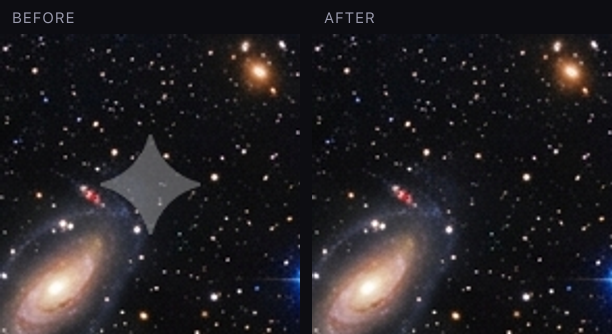
With the overlay in hand, removal is arithmetic. Detail that was under the sparkle — stars in a night sky, grain in an asphalt path — comes back exactly as it was. Our Gemini watermark remover does this, in your browser, and thecode is open source if you want to check.
2. Inpainting / generative fill (invents new pixels)
Photoshop's Generative Fill, Canva's Magic Eraser, and most free "watermark remover" sites do this: they delete the region and hallucinate a plausible replacement.
On a plain sky it is fine. On texture — gravel, foliage, a reflection — it is a smear, because it is guessing. And it is guessing at information that was still in the file, which is the frustrating part. Reach for this only when you have no template, which for a Gemini sparkle you don't need to.
3. Crop it out (safe, lossy)
The mark sits 96px from the corner, so cropping ~150px off the right and bottom removes it entirely, with zero risk of artefacts. You lose composition, and on a 1024×1024 image that is a real chunk. Perfectly reasonable for a quick share.
4. Pay for it
Since March 2026, Google ships watermark-free images to AI Ultrasubscribers and in Google AI Studio. Free-tier and AI Pro users still get the sparkle. If you generate constantly, that is the clean answer — and it is worth noticing that Google itself treats a watermark-free image as a normal thing to want.
Batch, terminal, and code
The same engine runs outside the browser. Drop several files on theweb tool and it cleans them as a batch; or from the terminal, with theopen-source CLI:
gwr photo.png
gwr *.png --suffix -nowm               # batch
gwr shot.jpg --region 900,980,120,120  # resized image: point at the mark
That --region flag matters more than it looks: it is the escape hatch for images the detector can't handle on its own (see below).
Troubleshooting: "no watermark found"
The detector verifies a real mark before touching anything — it would rather report "clean" than corrupt a corner. When it declines, it is almost always one of these:
The image was resized. Screenshots and messaging-app downloads scale the mark away from its native 48px / 96px geometry. The detector searches nearby scales, but a heavily resized copy needs --region — or better, go back to the original Gemini download.
It's an older mark variant. Google has shipped more than one version of the sparkle; measured samples range from 42–56px at insets of roughly 64–116px. Current versions of the engine search this whole range.
There is no mark. AI Ultra and AI Studio images have shipped clean since March 2026. Nothing to remove is the happy case.
What none of these do
All four remove the visible mark. None of them touchSynthID, the invisible provenance signal Google embeds in every generated image — and no honest tool should. Removing the sparkle gives you a clean canvas. Removing SynthID would be about passing AI work off as human-made, which is a different thing entirely, and not one we'll help with.
Use any of this on images you generated yourself.
The short version
| Method | What happens to the pixels under the mark | Cost |
|---|---|---|
| Reverse the blend | Recovered exactly | Free |
| Inpainting / generative fill | Replaced with a guess | Free–$20/mo |
| Crop | Thrown away, along with the corner | Free |
| AI Ultra / AI Studio | Never watermarked | Subscription |
Remove a Gemini watermark now →
Working with Nano Banana images? Same sparkle, same tool →